Install on Kajabi
Add the Luria tag to your Kajabi site's header code, then count purchases on the thank-you page your offer redirects to.
About 6 minutes
What you'll need
- Your Luria tag, with your site ID already in it. You get it during onboarding, or email hello@luriart.com and we will send it to you. The dashboard does not show the site ID yet.
- Admin access to your Kajabi site.
- A thank-you page you control, so you have somewhere to put the conversion call.
Step 1: Open your site's header code
In Kajabi, go to Settings, then Site Details, and find the header code box (Kajabi also labels this custom code or tracking code).
Step 2: Paste the tag
Paste this, with your own site ID in place of YOUR_SITE_ID, then save:
<script async src="https://luriart.com/snippet.js" data-luria-site="YOUR_SITE_ID"></script>Site-wide header code puts Luria in the <head> of every page Kajabi serves, including your landing pages and sales pages. That is the placement you want: the earlier it loads, the sooner a variant is in place.
Paste it whole
Luria reads your site ID off the tag itself. If you retype the ID, wrap the tag in other markup, or split it across two boxes, nothing loads and your site is untouched.
Step 3: Point your offer at a thank-you page
Open the offer, find its checkout settings, and set the thank-you page to a Kajabi page you can edit. That page is where the conversion gets counted, so it needs to be one you can add code to.
Step 4: Count the purchase
Open that thank-you page, open its own page-level code box, and paste this:
<script>
  (function () {
    var n = 0;
    (function go() {
      if (window.luria) return window.luria.convert("purchase", 297.00);
      if (++n < 40) setTimeout(go, 250);
    })();
  })();
</script>
Change the goal name and value to match the offer. Use window.luria.convert("purchase", 297.00) for a sale, or window.luria.convert("lead") for a free opt-in with no value. The short retry loop is there because the tag loads asynchronously, so window.luria can appear a moment after the page does.
Luria also counts a conversion on its own when the path is /thank-you, /thank_you, or /orders/ plus an order token. Add the call anyway. The automatic one is recorded, but split test results only count conversions you name yourself.
Count sales server-side instead
Want purchases counted even when the buyer never reaches the thank-you page? Send Kajabi's purchase webhook (or a Zapier or Make step) to your Luria webhook URL instead, and remove the Step 4 line so a sale is not counted twice. Setup and field mapping: Webhooks.
Verify it worked
- Open your live site in a private window with ad blockers off.
- View the page source. The tag should sit inside
<head>. - Open DevTools, go to Network, filter for
luriart.com. You should see calls to/api/patchesand/api/events, and/api/consentthe first time. - In the Console, type
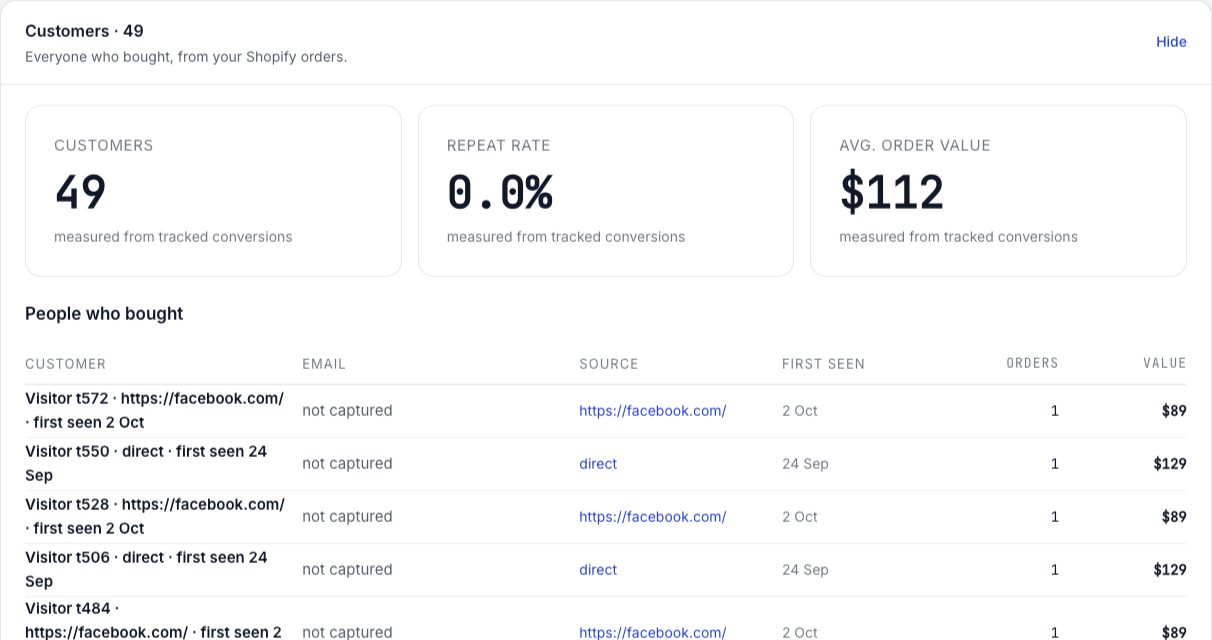
window.luria. It should return an object, notundefined. - Buy your own offer once, or use a free offer, then open the Customers section on your dashboard's Overview tab. The converted visit appears there.
Full checklist: Verify your install.
Common failures
Kajabi's default post-purchase page may not be one your site-wide code reaches. Point the offer at a thank-you page you own, then check the source of that exact page.
The tag is missing its site ID, so the snippet stops immediately. Or Global Privacy Control or Do Not Track is on in your test browser, in which case Luria collects nothing at all by design. Or you are in a region where Luria shows its own small consent banner and you declined; clear the site data and choose Accept to test again.
The conversion is being auto detected rather than named. Add the explicit window.luria.convert(...) call to the thank-you page.
window.luria.convert ran twice on the same page. Call it once.
An ad blocker, or a content security policy on your domain that blocks luriart.com. Test in a clean private window first.