Verify your install
Honest checks that prove Luria is installed, what the dashboard shows first, and what an empty dashboard actually means.
About 3 minutes
Two of these checks take a minute. The third is the one that takes real traffic.
What you'll need
- Your site or storefront live and reachable
- A private browsing window with ad blockers off, and Global Privacy Control or Do Not Track switched off in that browser
- For Shopify: the Luria app inside your Shopify admin
Step 1 (Shopify): read the Setup checklist in the app
Open the Luria app inside your Shopify admin (Apps, Luria). The Setup checklist is the answer. Look for App connected and tracking Live on your store, Data processing terms Accepted, and Sales tracking pixel Sending data. Press I added it, test the pixel to check the pixel right away.
Two things make this check fail quietly: Agree and start the import not pressed yet, and the custom pixel saved but not connected (it must say Connected under Settings, Customer events). There is no theme step to check: Luria adds its tag to your live theme by itself.
If you started at luriart.com/onboarding, the Go live step also ticks itself off once the app reports your agreement.
Step 2 (script installs): watch the network requests
Open your site in a private window with blockers off, open DevTools, and go to the Network tab. Reload the page. You are looking for two requests to luriart.com:
/api/patchesreturns 200 with a JSON array. An empty array is a pass: it means Luria answered and no test is live on that page yet./api/eventsreturns 202. It is sent bysendBeaconabout 1.5 seconds after the page loads and again when you leave the page, so it may appear under a ping or beacon filter rather than fetch.
If you are in the EU, UK or Switzerland, you will also see /api/consent first, and no events at all until you press Accept on the banner. That is correct behavior, not a broken install.
If neither request appears, go to Snippet not firing.
Step 3: check the dashboard
Sign in at luriart.com/app and open the Overview tab. Your tests, your store numbers, Leads and Customers are all computed from your tracked traffic, so they move as real visitors arrive.
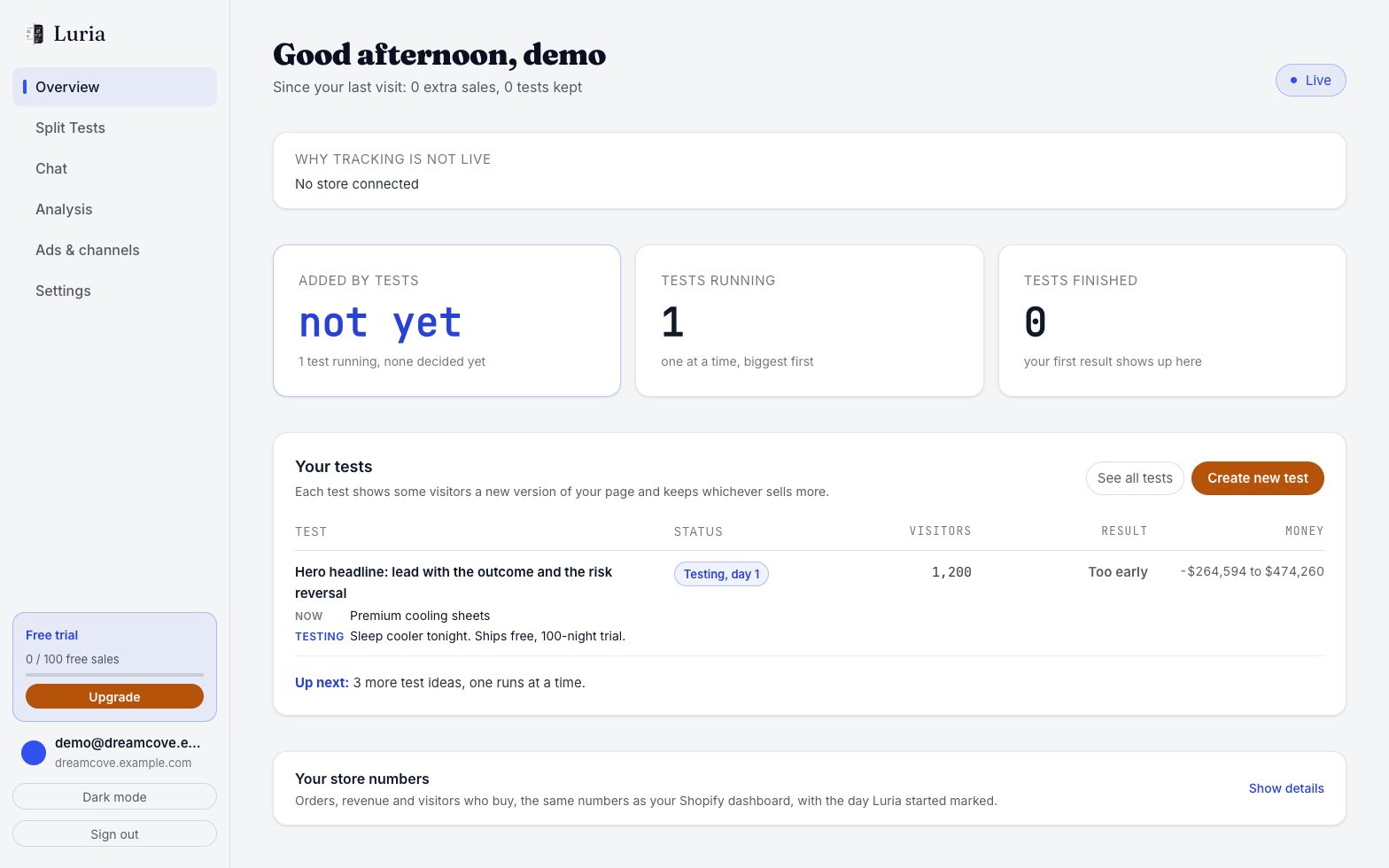
Per-test session counts live on the Split Tests tab, under each test card, alongside the control and variant rates.
Step 4 (connected platforms): read the Connections page
If Luria is connected to a platform for you (Cloudflare, GoHighLevel, Stripe, Calendly or a server webhook), open luriart.com/app/connections. Each connection shows a checklist: a green dot per check that passed, and for a failed one a sentence saying what to do plus a button that does it (Reconnect, Reinstall, Repair).
- Check now runs every check now instead of waiting for the next 10-minute round.
- Send a test visit sends one test visit through the connection and tells you how many seconds it took to arrive. Test visits are labelled as tests and never count as visits, exposures or conversions.
- Last data received shows when the tag on your pages and each server source last sent an event.
- What your data covers lists what your connections unlock. Anything missing (revenue with no revenue source, for example) shows as "Connect X to unlock it", and Luria shows no number for it until you do.
Verify it worked
| What you are checking | What a pass looks like |
|---|---|
| Shopify install | The app's Setup checklist reads Live on your store, Accepted, Sending data |
| Script install | /api/patches 200 and /api/events 202 in DevTools |
| Data arriving | Overview numbers change as real visitors come through |
| A test running | A card on Split Tests with a status of running |
| A connected platform | Every check on the Connections page is green; Test reports the event arrived |
What "nothing yet" means
An empty dashboard on day one is normal, not a failure.
Your own private-window visit is one session, not a conversion, and Overview counts only tracked traffic, so the numbers stay near zero until real visitors arrive. Luria builds the tests from your scan and your goal, so there is nothing for you to configure while you wait.
Results take longer than the install does. A variant is only promoted above a 95% probability of beating control with at least 200 sessions in each arm, so a store with modest traffic should think in days, not hours. If nothing is running a day after install, email hello@luriart.com.
Common failures
- No
/api/eventsrequest at all. See Snippet not firing. - Requests fire but nothing serves. See No variants serving.
- The Shopify steps never complete. Press Agree and start the import in the Luria app, and check the custom pixel says Connected under Settings, Customer events.
- Luria's numbers differ from Shopify's. Expected, and explained in Numbers don't match Shopify.
- A connection says Needs attention or Disconnected. Luria checks every connection every 10 minutes, tries up to 3 automatic repairs an hour, and emails you when a connection is disconnected (at once if a test is running, else in one daily summary). Your tests keep running exactly as they are; nothing is paused. Press the button next to the failed check. A revoked login always needs you: Reconnect takes one step.
Next steps
Install the universal snippet
One script tag in the head of any non-Shopify site, what it collects, and the one line that counts a conversion on your thank-you page.
Setup assistant
The in-app assistant that looks at your site, tells you exactly what Luria needs, connects your platforms and proves tracking works before it calls setup done.