
Install on Squarespace
Paste the Luria tag into Squarespace's header Code Injection, then count orders with the Order Confirmation Page injection.
About 5 minutes
Squarespace has one panel for third-party code. The header field covers your whole site. Commerce stores get a second field that runs on the order confirmation page, which is where the purchase gets counted.
What you'll need
- Your Luria tag, with your site ID already filled in. Luria gives you the tag during onboarding, or by email from hello@luriart.com. The dashboard does not show the site ID yet.
- Owner or Administrator access to the Squarespace site
- A Business plan or higher. Code Injection is not available on the Personal plan, and the order confirmation field needs a Commerce plan.
Steps
Step 1: Paste the tag into the header
Go to Website → Website Tools → Code Injection. On older sites the same panel sits under Settings → Advanced → Code Injection.
Paste the tag into the Header field and click Save.
<script async src="https://luriart.com/snippet.js" data-luria-site="YOUR_SITE_ID"></script>The change is live as soon as you save. There is nothing to publish.
Step 2: Count the order
Squarespace sends shoppers to its own confirmation URL after checkout, which is not one of the paths Luria detects on its own (/thank-you, /thank_you, /orders/<id>). Use the dedicated field instead.
In the same Code Injection panel, scroll to Order Confirmation Page and paste:
<script async src="https://luriart.com/snippet.js" data-luria-site="YOUR_SITE_ID"></script>
<script>
  (function go(n) {
    if (window.luria) return window.luria.convert("purchase");
    if (n < 50) setTimeout(function () { go(n + 1); }, 200);
  })(0);
</script>
The tag is repeated on purpose, because this page does not always inherit the header injection. If it does, the snippet ignores the second copy, so leaving it in is safe. The loop waits for the snippet to finish loading, up to about ten seconds.
Squarespace substitutes order placeholders inside this field, so you can pass the order total as a second argument (window.luria.convert("purchase", 129.00)) using the placeholder name listed on Squarespace's own Code Injection help page. Without a value the conversion still counts, it just carries no revenue.
Step 3: Count form conversions instead, if you don't sell
Not a store? Set your form's post-submit action to redirect to a page whose URL ends in /thank-you. Luria counts a visit to that path as a conversion on its own, once per browser, with no code at all.
Verify it worked
- Open your site in a private window with ad blockers off. If you are in the EU, UK or Switzerland, Luria shows a small consent banner; click Accept, since nothing is tracked before you answer it.
- View the page source. The tag is inside
<head>with your site ID in it, notYOUR_SITE_ID. - In the browser's Network tab, look for a request to
luriart.com/api/events. Events are batched, so give it a couple of seconds. - Place a test order, or submit the form. On luriart.com/app, open Overview and its Customers section: the Customers count goes up by one and that visit is listed.
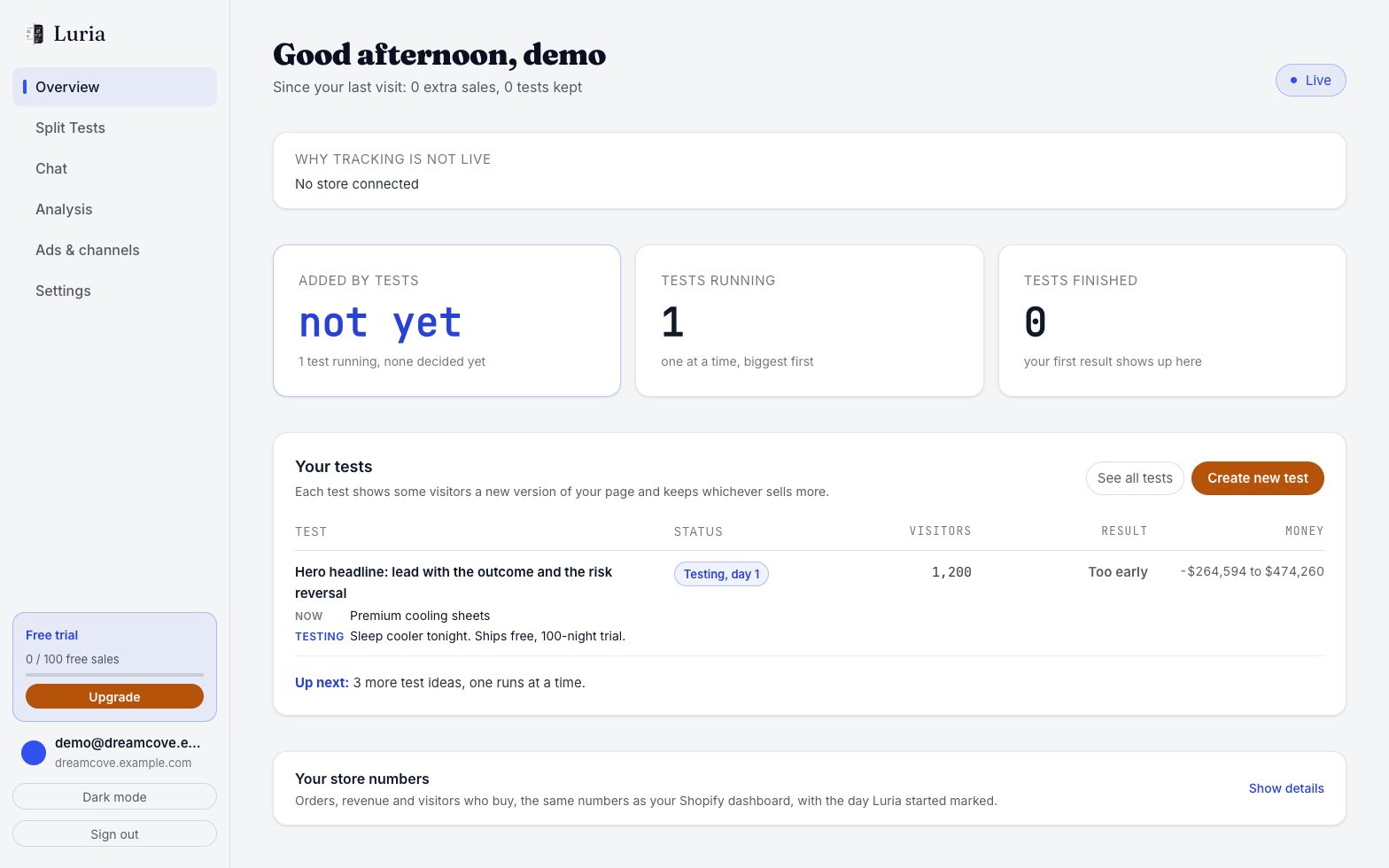
Full checklist: Verify your install.
Common failures
- Code Injection fields are missing. The site is on the Personal plan, or your account is a Contributor rather than an Owner or Administrator.
- Nothing tracked at all. The tag is missing its site ID or the ID has a typo. Without a valid
data-luria-sitethe snippet stops immediately. - Pasted into the Footer field. The tag still loads, but variants land after the page has painted. Move it to the Header field.
- Tracking works, orders do not count. The conversion code is in the Header field rather than the Order Confirmation Page field, or the shopper never reached the confirmation page.
- Counted twice. The convert call is in both fields, or the shopper reloaded the confirmation page. Keep one call. See Duplicates.
- Nothing in the test browser. Global Privacy Control or Do Not Track is on, or you clicked Decline on the banner earlier. Luria collects nothing in both cases. Clear the site data and try again.