Approving changes
Choose whether Luria waits for your approval, see what is waiting, approve it, and roll anything back.
Luria ships with Run on its own switched on: it starts each next test and keeps winners by itself. Switch to Approve first if you want nothing to reach your visitors until you say yes. This page covers where that setting lives, how to see what is waiting, and how to approve or undo a change from the dashboard.
What you'll need
- Access to your dashboard at luriart.com/app.
Steps
Step 1: Pick how changes go live
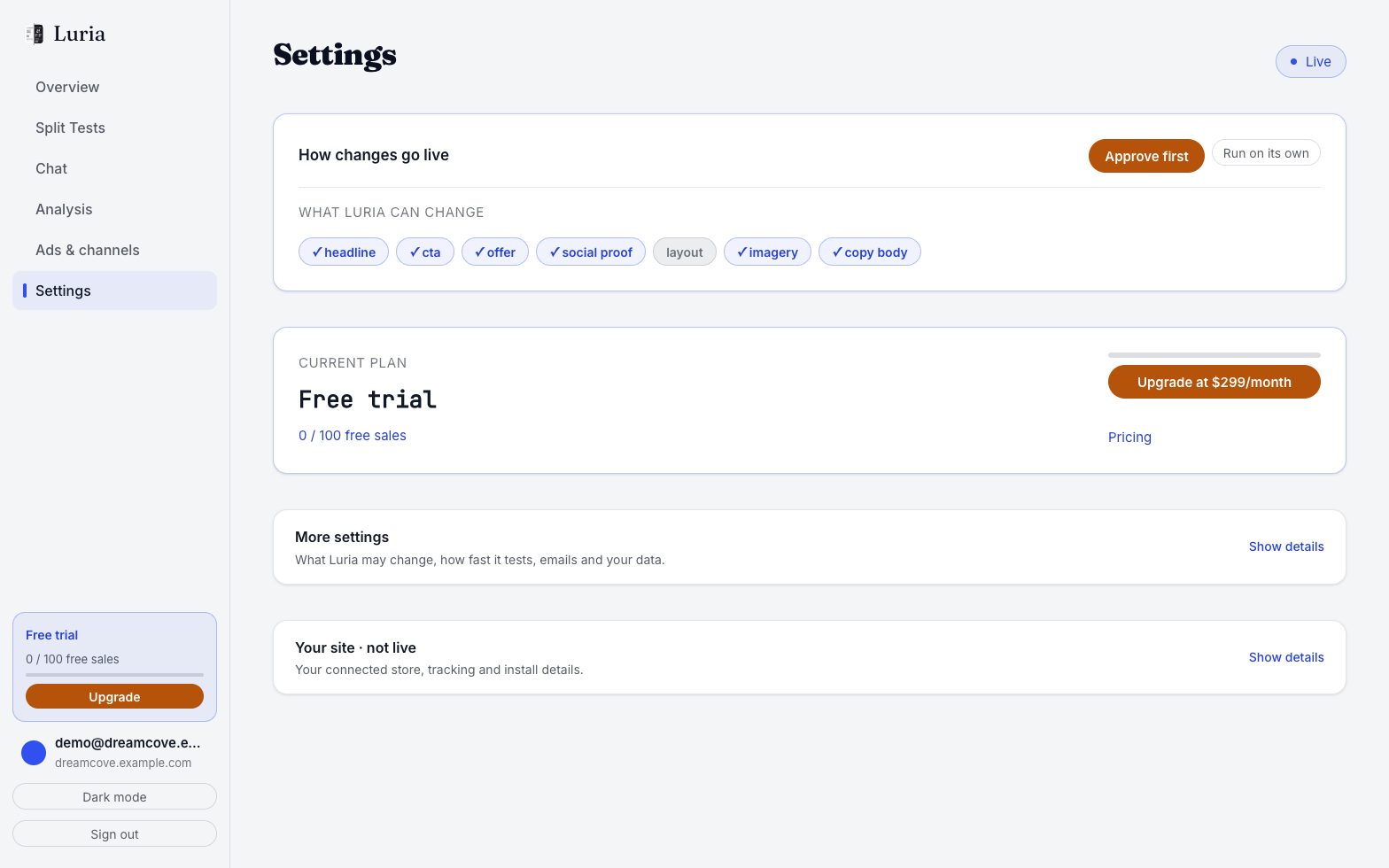
Open the Settings tab. The first card is "How changes go live" with two buttons:
- Run on its own (the default): Luria starts each next test and keeps the winner for you. You can undo any change.
- Approve first: every change waits for you to approve it.
Hover the heading to see which mode you are in. Your choice saves as soon as you tap it.
Step 2: See what is waiting
The line under the Overview greeting counts your queue when you come back, for example "Since your last visit: 5 extra sales, 2 tests kept, 1 waiting for you".
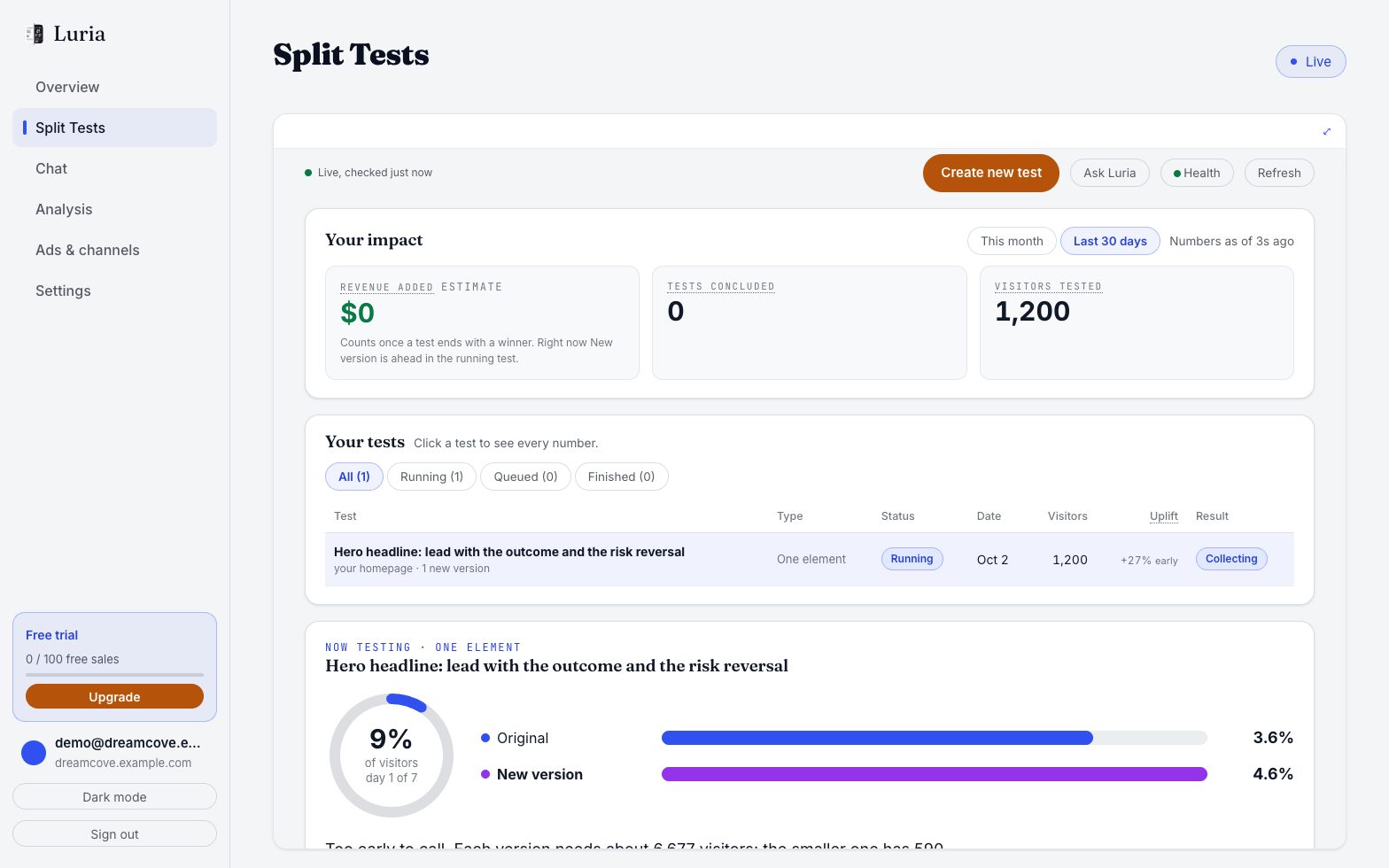
Open the Split Tests tab, then its Classic view fold. Under "Next up", every test idea waiting on you shows what it changes ("Now" and "Becomes"), the page and an estimate.
Step 3: Approve or skip a test
Press Run this test on an idea to start it, or Skip to drop it. A test you start runs next to Luria's own tests, one at a time.
If you would rather not review each one, switch the Settings card to Run on its own. Everything stays reversible either way.
Step 4: Roll back anything you don't like
On the Split Tests tab, open the Change log fold. It lists every change Luria made, with its date, page, a before and after picture and its status, and each row has a Roll back button. A running test also has Stop the test, Pause and Roll back in Classic view. A rolled back change stops serving within about 60 seconds and stays in the log, so your history is never rewritten.
Pausing everything
There is no site-wide pause toggle in the dashboard. To stop all serving, email hello@luriart.com and Luria pauses the site; variants stop within about 60 seconds and your pages go back to normal. On Shopify, uninstalling the Luria app also stops it at once.
Measurement is separate from serving. Pausing stops changes; your events, conversions and dashboard keep working.
Verify it worked
- The Settings card shows your chosen mode highlighted.
- In the Change log, an approved change reads live and a reverted one reads rolled back.
- Load the page in a private window with ad blockers off. An approved change should be visible within about a minute.
Common failures
- Ideas sit in "Next up" forever. That is Approve first doing its job. Press Run this test, or switch to Run on its own.
- You approved a change and nothing serves. Check the sidebar. If it says "Free limit reached", your first 100 free attributed conversions are used and your original pages are back on until you upgrade. See Plans and metering.
- You are in Run on its own but still see nothing. Serving may be off: on Shopify, the Data Processing Terms not yet approved in the app (Agree and start the import). Work through No variants serving.
- You want a change type never touched again. Switch its chip off under "What Luria can change" on the Settings tab. Checkout legal text, privacy and terms pages, and prices without approval are always off and cannot be switched on.