How Luria's tests work
Luria writes the tests, splits your traffic, moves it toward the winner, and keeps every change reversible.
Luria builds and runs the tests. You do not write variants, pick sample sizes, or decide when a test is finished. Your job is to set the rules and read the results.
What you'll need
- Luria installed and serving. See Install on Shopify or Install the script.
- The conversion goal you picked during onboarding (Sales, Booked calls, Leads / emails, App downloads). There is no goal selector in the dashboard.
- Nothing else. There is no test builder and no variant editor.
Steps
Step 1: Luria writes the test
Luria works from the scan run during onboarding (your homepage and your top product page) plus your answers about your goal, your current conversion rate and where your traffic comes from. From that it drafts one change at a time: a headline, a call to action, an offer line, a piece of social proof.
Step 2: A variant goes live for part of your traffic
A variant is a small patch, not a new page. Luria changes text and styling on the elements you allow, on top of the page you already have. Your theme and your files are never edited. If anything goes wrong, the visitor sees your original page exactly as if Luria were not installed.
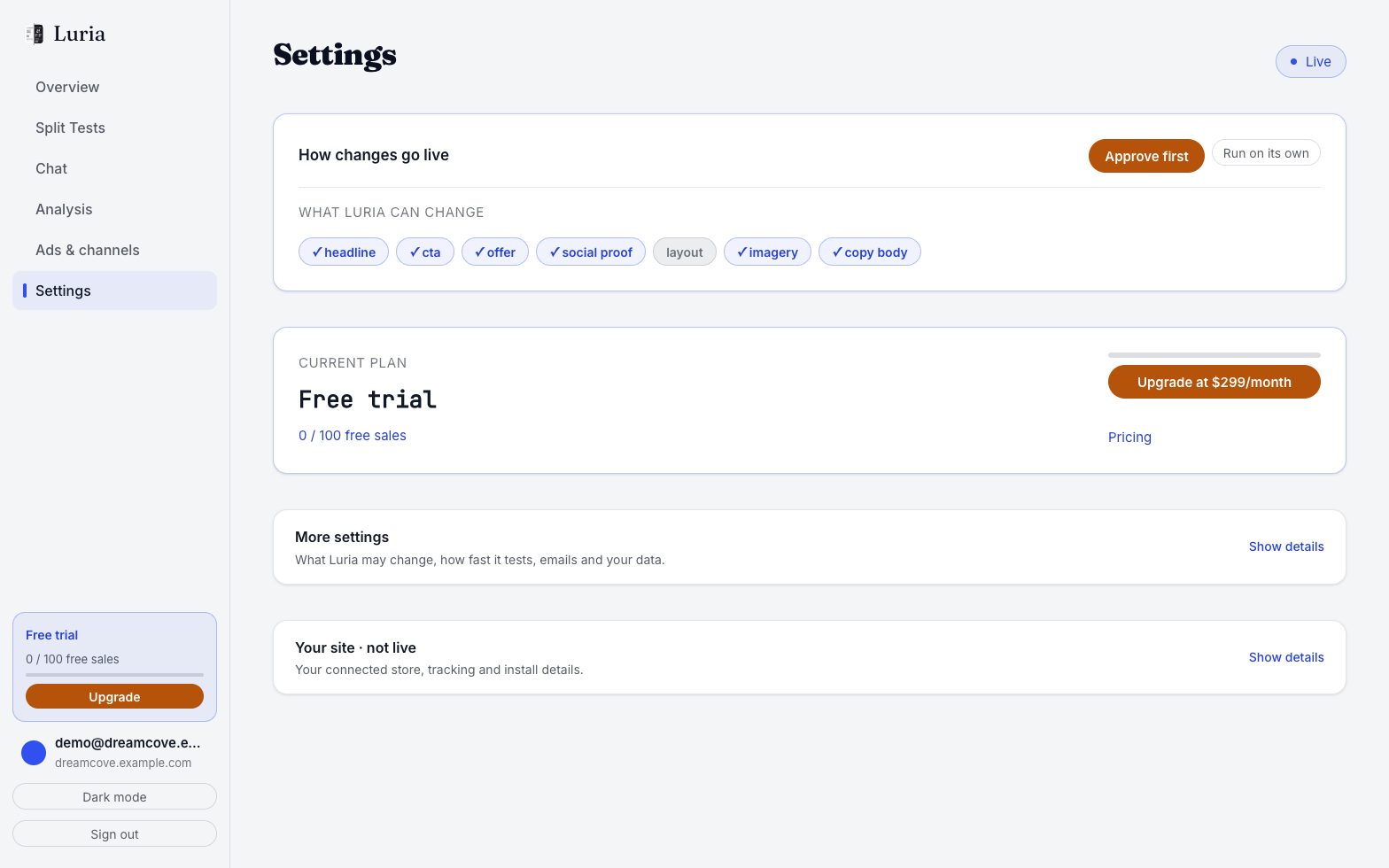
On the Settings tab, "What Luria can change" lists the element types Luria is allowed to use: headline, cta, offer, social proof, layout (off by default), imagery, copy body. Tap a chip to switch one off.
Always off, not negotiable: checkout legal text, privacy/terms pages, prices without approval.
Step 3: Your traffic splits, and stays split
Each visitor is assigned to control or variant by a hash of their Luria visitor id and the test. The same visitor sees the same version on every page load, so nobody watches your headline change under them. Until each arm has 200 sessions the split stays even, because a smaller sample cannot tell you anything yet.
Step 4: Traffic moves toward the winner
Once both arms are past 200 sessions, Luria recalculates the split every hour and sends more traffic to the arm that is winning. Control never drops below 10% of traffic, so you always keep a fresh comparison against your original page.
Step 5: Luria promotes or kills the test
A variant is promoted only when it is more than 95% likely to be beating control and both arms have at least 200 sessions (more when the gap between the two is small). A variant that drops below 5% likely is killed. Until one of those happens the test keeps running.
Approve first, or autonomous
On the Settings tab, "How changes go live" has two buttons:
- Run on its own (the default): Luria starts each next test and keeps the winner for you. You can undo any change.
- Approve first: every change waits for you to approve it.
Switching modes takes effect for changes drafted after the switch. See Approving changes for how to approve a change waiting on you.
Verify it worked
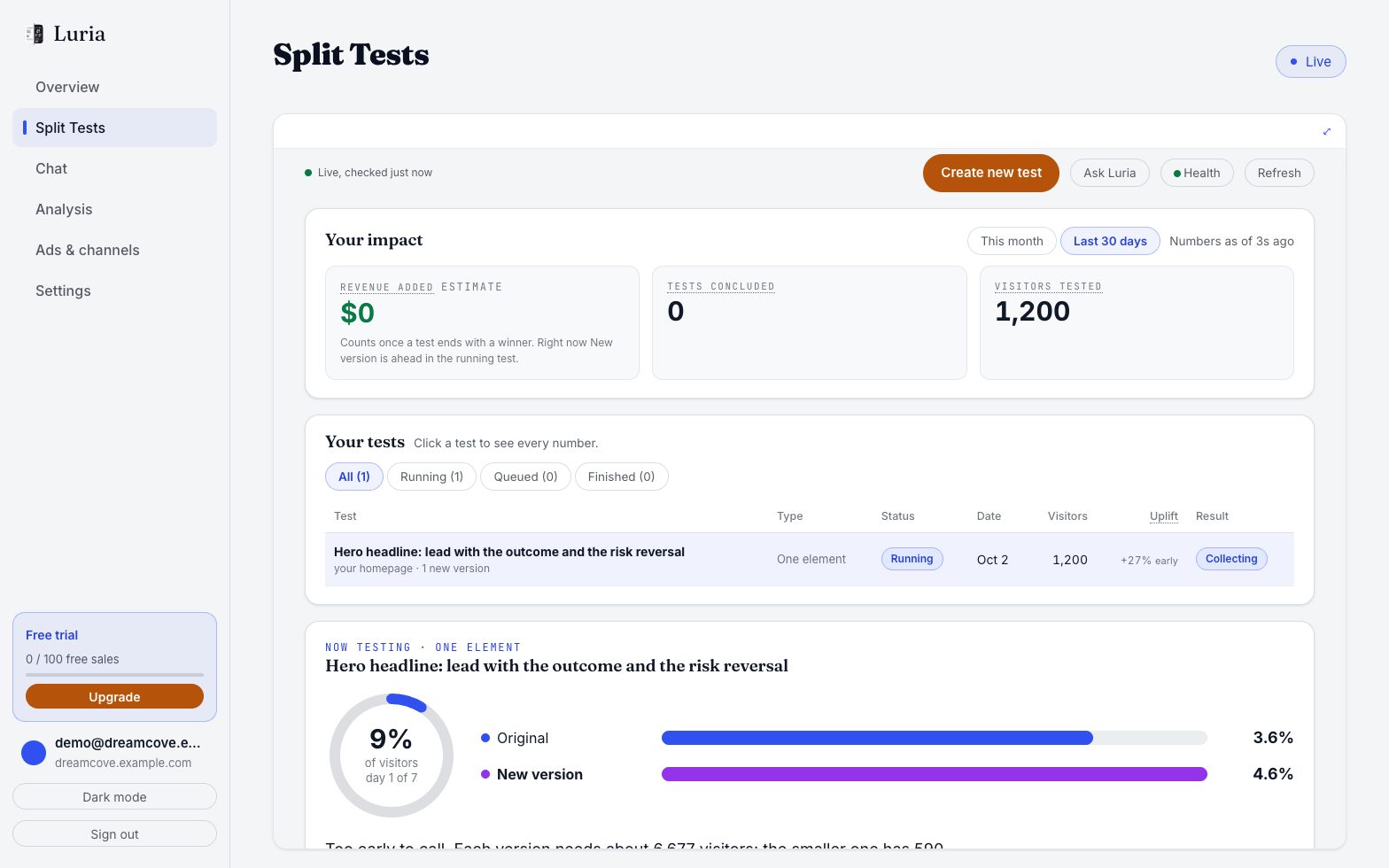
Open Split Tests. "Your tests" lists every test with its type, status, date, visitors, uplift and result. The test running now shows the original and the new version side by side with their conversion rates and how far along it is.
On the same tab, the Change log fold lists every change with its date, the page, what it was, a before and after picture and its status, plus a Roll back button on each row.
Common failures
- No tests on Split Tests. Nothing is live yet. In Approve first mode a test waits until you press Run this test, see Approving changes.
- Variants paused. After your first 100 free attributed conversions, variants stop serving until you upgrade. Measurement keeps running. See Plans and metering.
- Serving is off. On Shopify the Data Processing Terms must be approved in the app, and the app must say "Live on your store". Full checklist in No variants serving.
- The numbers barely move. Below 200 sessions per arm the split is deliberately even and the estimates swing. That is the honest state, not a fault.
Next steps
Luria's API surface
The JavaScript calls the Luria tag exposes, the server key for sending conversions from your own backend, and how to test an install without touching your results.
Approving changes
Choose whether Luria waits for your approval, see what is waiting, approve it, and roll anything back.